Showing posts with label windows 8. Show all posts

Friday, October 24, 2014

How to Install Windows 10 Technical Preview the Easy and Safe Way?

Microsoft has finally released the Technical Preview of its latest Windows version- so called Windows 10. It is said that this new OS is designed to make up for the failure of Windows 8 and integrate the perfect features in Windows 8 and Windows 7. You want to have a try? Here I will show you how to install it easily and safely. 


Part 1: Windows 10 Technical Preview Installment Requirement:


Processor: 1 gigahertz (GHz) or faster
RAM: 1 gigabyte (GB) (32-bit) or 2 GB (64-bit)
Free hard disk space: 16 GB
Graphics card: Microsoft DirectX 9 graphics device with WDDM driver
Others: A Microsoft account and Internet access


Part 2: What’s to Be Done Before The Installation?


1. Backup your entire system. 
This will help you get back to your previous system in case of failing to install Windows 10 Technical Preview. So don’t forget to do this.

2. Backup your data. 
If you don’t want to risk losing your data in your computer you’d better to make a copy of your important data on a removed disk or another spare PC.

3. Ensure you have access to the drivers and applications you need. 
Drivers for basic functions like storage, networking, input, and display come with Windows. These drivers allow you to complete the Windows installation and connect to the Internet. Thus it is essential to backup the drivers. Some applications you use most like Microsoft office is also important. So bear in mind to keep offline installers for these applications.   


Part 3: How to Install Windows 10 Technical Preview:


Considering the safety of your computer I introduce a better option to install the OS-running it on a virtual machine that won't affect your system in any way (except for occupying some space on the hard drive). Let’s go over it step by step:

Step 1: Download ISO of the Technical Preview Preview from Microsoft website. Please choose the appropriate version (32 bit or 64 bit) according to your computer. There is one thing you must to do after downloading it-checking the ISO integrity. You can perform it by using the Microsoft File Checksum Integrity verifier if your computer runs on Windows. 

Step 2: Download and install Oracle VM VirtualBox

Step 3: Run Virtual Box, then click the “New” icon. In the Create Virtual Machine dialog box, type "Windows 10," then click the version selector and choose Windows 8.1 (making sure to match the ISO you downloaded: 32- or 64-bit). Then click “Next”
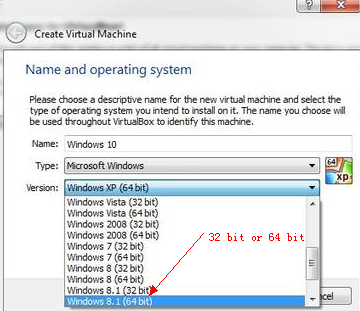
create virtual machine

Step 4: A window like below will come up. Follow the instruction in the window and continue. 
choose memory size

Step 5: Then select "Create a virtual hard drive" and click Create. Accept VDI (VirtualBox Disk Image) as the file type for the drive, and then choose an appropriate size for the virtual drive. Finally, click Create, then VirtualBox will build your virtual drive.

Step 6: After the process completes, click the Start button in the VirtualBox toolbar. You'll see a box guide you to "Select start-up disk." Click the little file folder next to the pull-down, then navigate to the Windows 10 ISO file you downloaded in Step 1. Then click Start. 

Step 7: Choose the "Custom: Install Windows only (advanced)" option when it presents itself. As usual, the setup process may involve a few reboots.

After finishing all the steps above you’re supposed to start Windows 10 on your computer. Just go to explore the new features you have interest in.         

Tuesday, March 18, 2014

How to Get a New Win 7 PC in Win 8 Era?

What do you think about Windows 8? Is it “divisive”? Microsoft's finger-first, device-agnostic reimagining of Windows draws haters like flies and has played some part—how large a part is up in the air—in driving PC sales off a cliff since its launch. Even so, Microsoft isn't backing down, and Windows 8 and its Live Tiles are darn near ubiquitous in stores. However, are we hostages to Microsoft’s hubris? As we already know, Windows 7 is by no means gone and dead while Windows 8 indeed lurks inside the vast majority of consumer PCs sold today. As a matter of fact, we can have the choice of operating system, which takes a little digging.


Method 1: Buy a Prebuilt PC

Maybe you will get surprise that the consumer Windows 7 PC often priced somewhat higher than comparable Windows 8 PC.


It is know to all that the end-of-sales date for computers with Windows 7 Home Basic, Home Premium, and Ultimate is October 31, 2014. Therefore, just hurry up if you need a consumer computer packing Windows 7 operating system. Except for that, what you can purchase may only be the purchase business-focused laptops and desktops powered by Windows 7 Professional. Worst still, those can cost numerous pretty pennies. As a matter of fact, Windows 7 PC price higher and higher. This is because many indows 7 PCs available today already aiming at the Professional version. Dell, Lenovo, HP, and other mainstream PC makers reside in the business category still sold all Windows 7 computer. Outique PC builders, such as Origin and Falcon Northwest, also offer Windows 7 as an option for their built-to-order rigs. But those custom, drool-worthy computers start out expensive and only go up—way, way, way up—from there.

Therefore, you should consider searching for one that has Windows 7 Professional installed using the downgrade rights from a Windows 8 Pro license if you are shopping for a prebuilt PC. In other words, just search for "Windows 7 downgrade" on your e-tailer of choice. In this way, you won't have to pay for a new Windows license if you ever decide to upgrade to Windows 8 or 8.1, thought we’ll talk more about downgrade rights in a bit.

Method 2: Roll Your Own PC

Here are bad news and good news. Hmm, we begin at good news first. The good news is E-tailers apparently stockpiled Windows 7 licenses by the bucketful before Microsoft cut off access. Finding boxed copies of Windows 7 online is dead simple. Even better, Windows 7 Home Premium still sells for its recommended $100 MSRP. Unlike hardware pre-stuffed with Windows 7, there's been no price inflation on the software front.
The bad news is the deadline has passed for buying standalone, boxed OEM copies of Windows 7. Everyday folks simply can't get them from Microsoft anymore.


In the consideration that you are able to fin boxed copies of Windows XP online, then wish to find Windows 7 on sale for a while, though its cost is sure to creep up as availability dwindles over time. Just think twice what you are buying. In fact, some third-party sellers offer "open box" copies of Microsoft's operating system. Steer clear of those. While despondent Windows 8 owners can install a fresh copy of Windows 7 on their PCs, this option is more likely to appeal to folks cobbling together a DIY computer from the power supply on up.

Method 3: Downgrade Windows 8 Pro

If you are not fond of Windows 8 but want a new laptop that comes with Windows 8 preinstalled, it’s possible to switch back to Windows 7 without having to reformat.
If you buying a PC loaded with Windows Pro, the version of Windows designed for business, you can utilize “downgrade rights” to downgrade it to Windows 7 for free. And individual users will have to jump through a number of hoops to downgrade their Windows 8 Pro systems.


That is all, if you have any more good tips on these aspect, please don’t hesitate to share with us.