Thursday, August 22, 2013

6 Handy Hidden Features on Windows 7

Well, Windows 8.1 has been a hot topic recently. But most Windows users still run Windows 7. Microsoft's circa 2009 operating system was one of the company's most praised releases in decades, and for good reason: It's a highly functional and sturdy piece of software. But as with any OS, it encompasses a deep and large set of capabilities and settings. And this article is about some of those less obvious features.
In fact, you won't find any mention of most of these hidden Windows 7 treasures in the company's official documentation. These features range from system settings through built-in utilities to lesser known keyboard navigation tricks, and everything that we’ve listed here is available without downloading anything extra (well, mostly). Oh, and while you’re here, you might also want to check out our guide to customising Windows 7.

windows 7

1. God Mode

It may be hyperbolically named, but Windows 7's God Mode is indeed omnipresent. It conveniently puts hundreds of settings from all around the operating system all in one place.To turn on God Mode, create a new folder on your desktop.The resulting folder will contain 270 items, representing virtually every configurable option in Windows 7.

2. Enhanced Calculator

Windows 7's calculator has a few extra tricks up its sleeve, which you'll find under the View menu. It can perform all kinds of unit conversion (temperature, weight, area, and eight others), interesting date calculations, and even has worksheets to calculate a mortgage payment or a car's fuel mileage. It maintains a history of your previous calculations as long as the program is open.

3. Reliability Monitor

When your system's acting flaky and you're trying to figure out what's going on, the Reliability Monitor may help. Search for "reliability" from the Start menu, and run View reliability history. You'll get a graph of your system's "stability index" over a period of days and weeks (rated on a scale of 1 to 10). It displays which programs, Windows components, or miscellaneous items crashed on a given day, helping you identify problem areas.

4. Power Efficiency Report

If your Windows 7 laptop isn't getting the battery life you expect – or if it experiences power-related issues, such as the inability to go into standby or hibernate mode – the problem usually lies with incorrectly configured power management settings.
Windows 7's Power Efficiency Report can help you sniff out potential problems. Search for CMD from the Start menu, run it as an administrator (right click cmd.exe on the menu and choose Run as administrator). From the command prompt, type the following (don’t forget the space):
powercfg –energy
Your system will be scanned, and after about a minute, you'll find a file called energy-report.html in your \windows\system32 folder. Copy the report to another location and open it (you'll get a file not found error if you try to open it from the system32 folder) for detailed information about what system devices or settings are throwing a monkey wrench into your power management.

5. Pin folders to the Taskbar

You already know that you can right click your favourite programs and pin them to the Windows 7 Taskbar for easy access. Right? Although there's no such option for folders, there is another way to keep them close at hand on the Taskbar. Right click any folder, drag it to an empty space on the Taskbar (or to the Windows Explorer button), and let go when "Pin to Windows Explorer" appears. Now when you right click the Windows Explorer button, your folders will be accessible via the Jump List.

6. Wipe free disk space

It's no secret (or at least, it shouldn't be) that when you delete files or folders in Windows, they're not actually erased – the space they took up is simply marked as "available for use," which allows the files to be recoverable (with the right software) until they're overwritten with new data.
There is a utility built into Windows (even XP Pro and Vista) that will overwrite all the free space on a hard drive, ensuring any files you've deleted stay dead. Launch a command prompt and type the following:
cipher /w:X
Replace the letter X with the letter of the drive or partition you want to wipe. Be patient – the process can take a long time if you have a lot of free space.

That is all of these 6 handy hidden features on Win 7. If you have any question, feel free to leave comment below.


Tuesday, July 30, 2013

How to Hack Windows 7 Administrator or User Password?

We have already written several windows 7 password recovery tips on this blog. Today we will tell you how to hack Windows 7 password if locked out of computer? Yes, there are kinds of Windows 7 password hacker ways with which you can get pass windows 7 login screen even when you forgot windows 7 login password.
hack windows 7 password

Hack Windows 7 Password without Software


There are 2 types of account on Win 7 by default. There is local account or Windows live or hotmail account. The former stores the login on PC, while the latter connects to the online hotmail or live email id. Here I would like to show you Windows 7 password reset with default Windows 7 administrator account.

Tip 1: Hack Windows 7 Login Password with Default Windows 7 Administrator Account


First you need to boot Win 7 in safe mode as it is disabled in normal mode. When you are in safe mode, this default Windows admin account enabled to login Win 7 with a blank password. The you can remove the forgotten user account under users in control panel. Below is step by step guide for you:

1. Press on the F8 key while you start Windows 7 until your PC displays the boot menu.
2. Select Safe Mode option and press the Enter key
3. Then a login box appears, click on Administrator in the username box and leave the password field as blank, click on OK to login.
4. Now you can open Control Panel, then in User Accounts you can reset any user password easily.

Tip 2: Hack Password Windows 7 with Password Reset disk


It seems quite simple to hack Windows 7 password if you have Win 7 password reset disk. Assure that you have created it in advance. Otherwise, you change to hack Windows 7 password is over. Now you lost Windows 7 password, it is time for you to find it and use it. It is easy to reset Windows 7 password with it, what you need to do is follow the step by step wizard to create a new login password to the current user.

If the above Windows 7 password hacker methods don’t work at all for you, don’t worry. These windows 7 password hacker methods in the above list are helpful, but might be unsuitable for your case. In this condition, you can have a try Windows password reset tool designed for Win 7.

Hack Forgotten Windows 7 Password with Software


One of the popular Windows 7 password hacker tool which is confirmed to replace your forgotten windows 7 password with blank so that you can login without entering any password, it is Windows Password Key. Besides hacking a local account password this tool will also show you how to break main user account password.

Windows Password Key resets any Windows password, such as Windows 8/7/Vista/XP/2012/2011/2008/2003/2000. It can hack domain passwords as well. No matter how complicated your Windows 7 password, Windows Password Key can reset it within 4 minutes. It’s easy to use, whether for beginners or advanced users. And it comes with ready-only and non-destructive designs to make sure it has no data loss on your computer. You can go to its official website to for more information: www.lostwindowspassword.com


After reading this article, you should have learned how to hack Windows 7 password when you forgot or lost the password. If not, read it again. By the way, you can also hack Windows 8/Vista/XP/2012/2011/2008/2003/2000 password as these methods.

Monday, July 15, 2013

How to Bypass Windows 7 Password with or without Disk?

How do I bypass password on Windows 7 when you forgot Windows 7 password and locked out of computer? If you have forgotten windows 7 password and have no reset disk, the methods described in this article will help you bypass the lost password Windows 7 with or without disk. You just need a few minutes to read these Windows 7 password bypass methods in this article, and pick the right one to take it to carry out.
bypass windows 7 password
Method 1 shows how to reset a lost password with a windows 7 recovery disk which you have created in advance.
Method 2 and Method 3 describe how to reset a user account password that you can login in via another administrator account.
Method 4 tell you how to reset Windows 7 password with Windows Password Key tool.
Method 5 is a video guide which help you crack password Windows 7 step by step.

Option 1: Reset Windows 7 Password with Reset Disk


When you forgot Windows 7 login password and locked out of computer, a password reset disk can really help you. But it only works with the windows 7 system who created the password reset disk. The following instructions show you how to use password reset disk to bypass forgotten Windows 7 password.

reset windows 7 password
Step 1: Starts Windows to log on screen.
Step 2: Click a user account you want to reset its password, and then press "Enter" to log in. When message "The user name or password is incorrect" appears, click "OK".
Step 3: Click "Reset Password..." text button under password box to start password reset wizard.
Step 4: Insert Windows 7 Password Reset disk, and then you can follow the step by step wizard to create a new login password to the current user.

Option 2: Bypass Windows 7 Password via Command Prompt


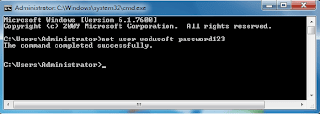
With Net User command, you can bypass windows 7 user password easily if you can log on windows 7 with another user who has administrator privilege. Net User command is also used in windows 8, vista, xp, 2000, 2003 and 2008. Now, you can reset a user password in two steps below:

prompt
Step 1: Launch Command Prompt: Start -> In search box, type in: cmd.exe -> Right click cmd.exe on search result -> Run as administrator. If you are login windows with administrator user, you can run cmd.exe directly without "Run as administrator".
Step 2: On Command Prompt, type in: Net user <user name> <new password>. Tips: Replace <user name> with user name, and replace <new password> with password. When get message "Command completed successfully", it means the password has been reset successfully.

Option 3: Bypass Password Windows 7 without disk - Via User Account Management


Although net user command can reset windows user password effectively and quickly, but many people prefer friendly user interface to black-white text windows. User Account Management panel offers friendly UI to manage user account profile, which is most easier to accept by computer beginners.

Step 1: Open User Account Management through this path: Control Panel\User Accounts and Family Safety\User Accounts\Manage Accounts.
Step 2: Click the user account you want to change its password, and then a sub panel "Change an Account" is opened.
Step 3: Click "Change the password" on the left of panel.
Step 4: When "Change Password" panel opens, enter new password, and click "Change Password" button to complete the password resetting operation.

Option 4: Bypass Windows 7 Login Password with Windows Password Key Tool


It is not necessary to be disappointed when the methods above don’t work for you at all. This method can really help you bypass your forgotten Windows 7 password without password reset disk and any login password. What you need to prepare is anther accessible computer and a blank CD/DVD or USB flash disk. Well, to bypass Windows 7 administrator or user password safely and successfully, a powerful password reset program is definitely need. Here I pick up the best Windows 7 password recovery tool- Windows Password Key Tool to help you bypass password Windows 7 instantly.

Step 1: Get Windows Password Key Tool and install it.
Step 2: Create a windows 7 password reset disk. Insert USB flash disk or blank CD/DVD disc, and then click "Burn to USB" or "Burn to CD/DVD" to create a password recovery disk.
Step 3: Set the locked windows 7 computer to boot from USB or CD-ROM.
Step 4: Insert windows 7 password reset disk to the locked computer, and restart it to boot from password recovery disk.
Step 5: When password program starts, select a user account, and click the "Reset" button to set a new password for it.
Step 6: Click "Reboot" to restart computer, and login with new password.

Option 5: Helpful Video on How to Bypass Windows 7 Password


If you find those 4 methods above are hard to understand, try to bypass your forgotten Win 7 password by following this video guide. It is easy to operate after all.


Of all the 5 solutions mentioned above, Windows Password Key Tool is the ideal choice for you to access lost administrator or user password in Windows 7 under all circumstances. Choose them accordingly to help you bypass password Windows 7.

Wednesday, July 3, 2013

How to Break Windows 7 Password with Ease?

Here I would like to help you break Windows 7 password with or without Windows 7 password reset tool. These Windows 7 password breaker suggestions will help you hack Windows 7 password on any brands PC such as Dell, Acer, Asus, Toshiba, HP, Sony, Samsung, Lenovo, etc.

break windows 7 password

Q 1: I have a dell computer with windows 7 professional and forgot the login password? Now I am locked out of it and I really need this laptop. All answers are appreciated!

Q 2: OK now I forgot my windows 7 administrator password what do I do I need to get the pass please help!

Q 3: I forgot my windows 7 password, if there a way that I reset password Windows 7 and can get back into my account. (Have no password reset disk)

Q 4: My sister forgot Windows 7 password on HP laptop, so there’s only a standard user I can get on and I can’t download anything… Is there anyway doing that, or helping me got my password back for free?

Q 5: How to crack lenovo laptop password on Windows 7? I just forgot it. Please help.

Try to break Windows 7 password with Windows 7 password breaker tool. These utilities are not mentioned by Microsoft, but they are widely used by lost Windows 7 password users in reality. And that’s why there are so many Windows 7 password breaker tools are available for your choice, including both freeware and shareware.

Ophcrack is the most popular one when it comes to free tools. This freeware is actually a Windows password breaker based on rainbow tables rather than a reset tool. It can help you break any Windows system, including Windows 7, of course. It comes with a Graphical User Interface and runs on multiple platforms.

To create a bootable password reset disk, Windows Password Key 8.0 is the best solution. This Windows password breaker program enables you to create a bootable password reset disk with a CD/DVD or USB flash drive in seconds. Once the password reset disk is burned, you can use it to break password Windows 7 within a few clicks. And the bootable password reset disk can also be used to break passwords for Windows 8, Vista, XP, 2012, 2011, 2008, 2003, 2000.

Part I: Create a bootable Win 7 password reset disk

1. Download and install Windows Password Key 8.0 in any accessible PC. Then launch this tool.
2. Insert a blank CD/DVD or USB drive in your computer and select Burn a bootable CD/DVD or USB. After that, select your target device and click the Burn button. It only takes a few seconds to finish burning task.

Part II: Break Windows 7 Password

1. Insert the burned bootable win 7 password reset disk in your locked win 7 computer and start the PC from the disk.
2. Then you will see the interface of Windows Password Key 8.0, select the system and the account whose password you need to reset for, and click Reset password button.
3. Select New password and enter the new password for your target user account in Win 7.
4. When the password is successfully resetted, Click OK.
5. Click Reboot button to restart computer, then you can log into Windows with new password. Note: Please remove the bootable win 7 password reset disk during restart so that the computer will boot as usual from the hard drive disk.

Still have difficult in using Windows Password key 8.0? Try to follow this video guide to break Windows 7 password step by step:


With these Windows 7 password breaker methods above, you can regain access to your locked Win 7 system easily. Come on, give it a try to break your forgotten Windows 7 password!